
Shop by Store: Filter Your Grocery List by Where You Buy
Angel Azcarraga · June 11, 2026
If your weekly shop is really two or three trips — the regular supermarket, a Costco run every couple of weeks, that one ingredient only the Asian market carries — a single grocery list gets messy fast. You're standing in one store scrolling past items meant for another — half the list doesn't apply, and it's hard to tell when you're actually done.
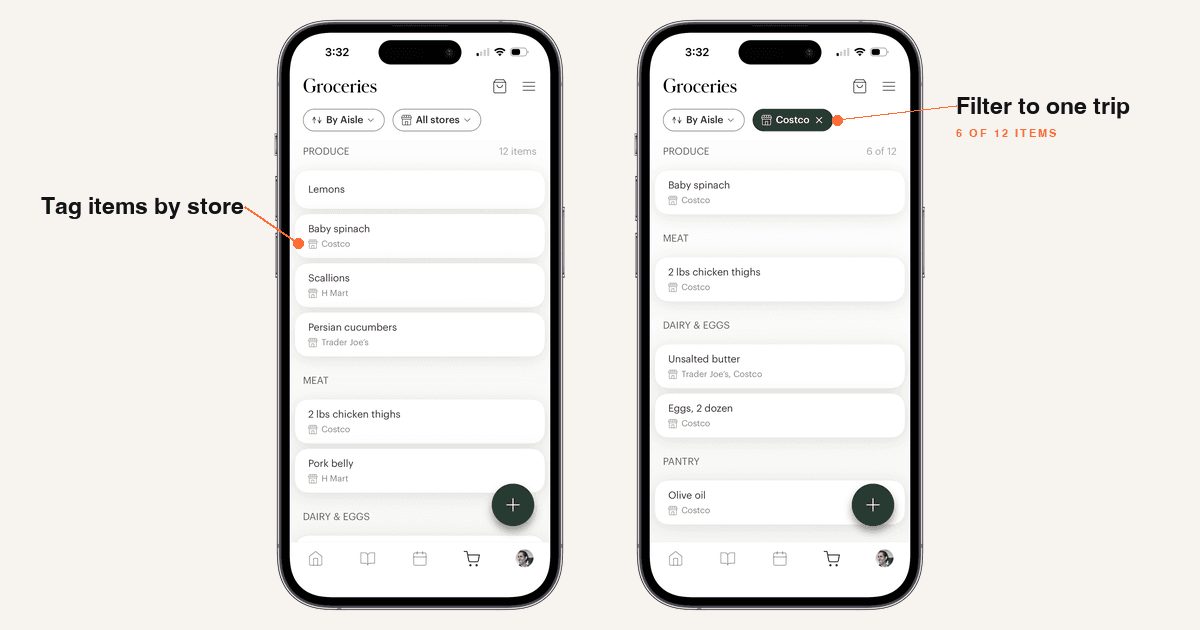
That's what Shop by Store fixes. You can now tag every item on your Deglaze grocery list with the store (or stores) you buy it from, and filter the list down to just the store you're standing in. One list, one trip at a time.
Tag Grocery Items by Store
Tap any item on your grocery list and you'll see a new Stores section in the item editor. The first time, add the stores you shop at — tap + New store, type the name, and it's saved from then on. (You can also find Manage your stores in your grocery list's menu.)
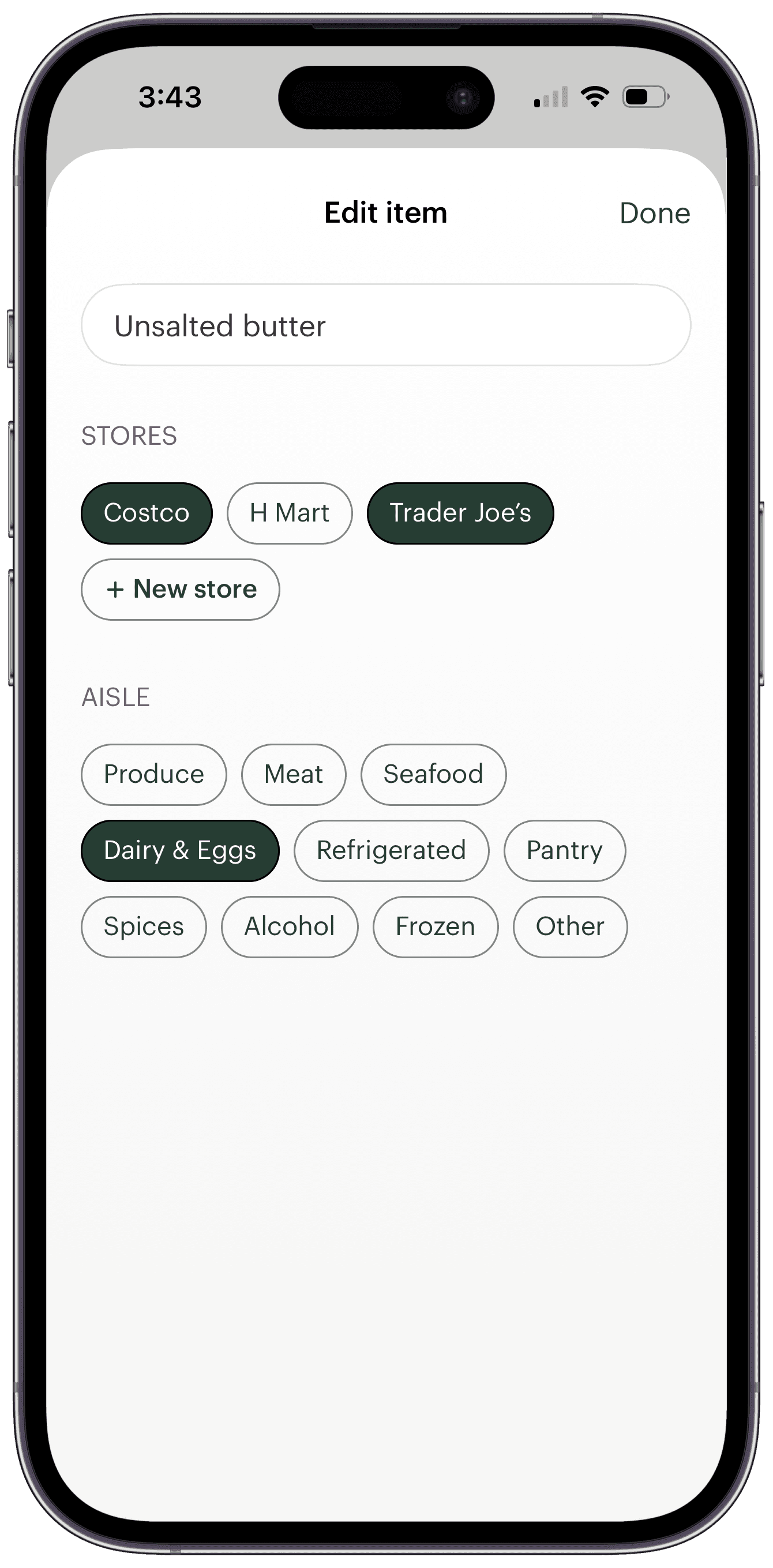
An item can belong to more than one store, too. If unsalted butter is a "whichever store I hit first" purchase, tag it with both — it'll show up on either trip and disappear from the rest of your list the moment you check it off.
There's no upfront project here, either. Tag items as you add them, or tag a handful before your next trip and let the rest catch up over time. The (No store) filter (more on that below) makes it easy to see what's still untagged.
Filter Down to One Trip
When you head out, tap the All stores pill at the top of your grocery list and pick where you're shopping. The list filters to just the items for that trip, with a count — "6 of 12" — so you always know what this store covers versus the whole list.
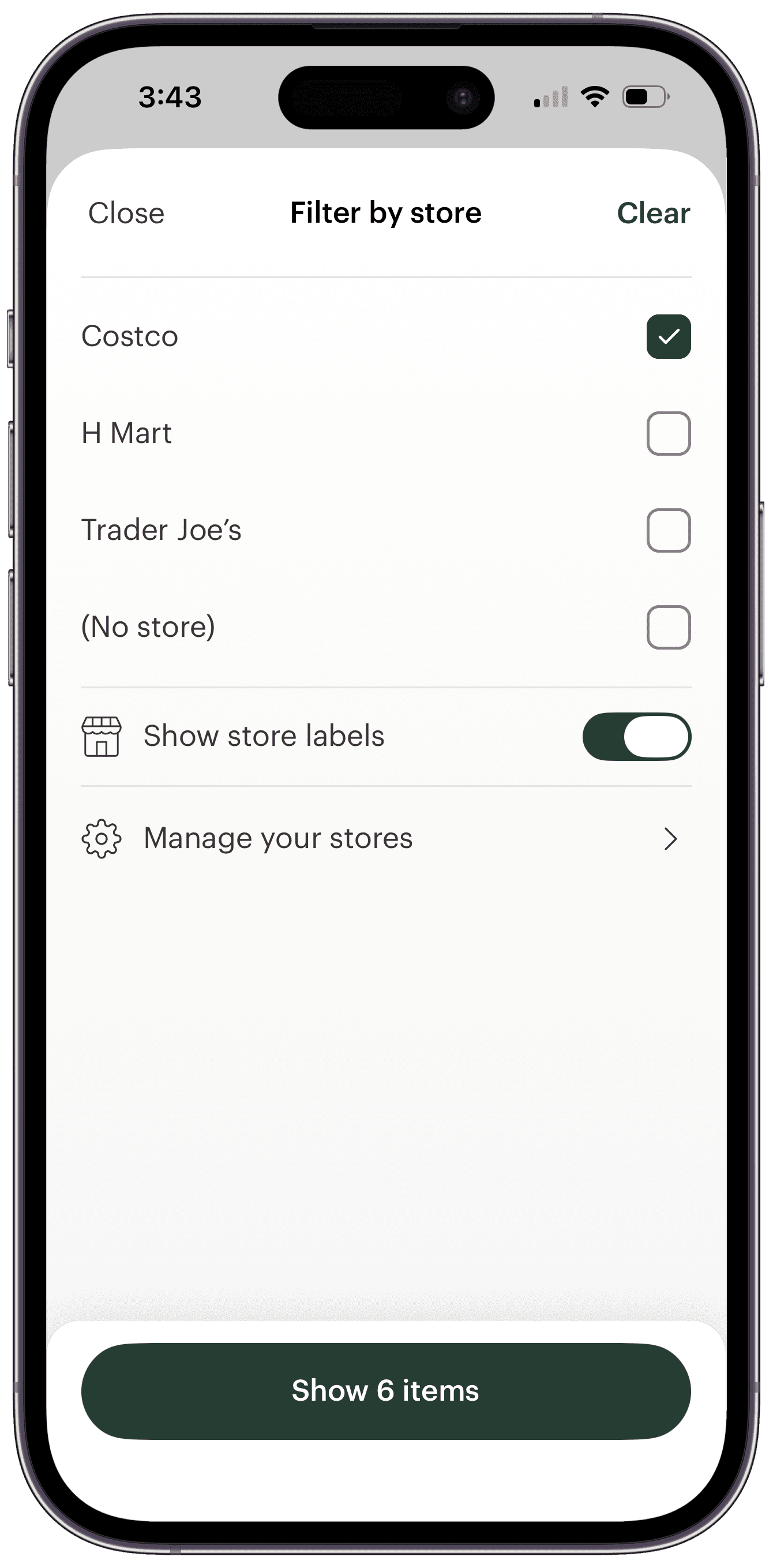
Everything else about the list works the way you'd expect. If you sort by aisle, the filtered list keeps its aisle sections — so your Costco trip is still organized produce-to-frozen, just without anyone else's items in the way.
Two smaller touches round it out:
- (No store) — a filter for items you haven't tagged yet, so nothing falls through the cracks on your last stop.
- Show store labels — an option that displays each item's store right on the list, for when you're looking at everything at once.
New Items Tag Themselves
Here's the part that makes the feature feel effortless: while a store filter is active, anything new you add is tagged to that store automatically.
Picture it — you're shopping the Costco filter and remember you're out of rotisserie chicken. Tap +, type it, done. The add screen shows exactly which store the item is headed to, and you can adjust it before saving if you're adding something for a different trip.
In the App and on the Web
Shop by Store works on your phone and on the Deglaze web app. Set up stores and tag items from your laptop while you plan the week's meals, then filter on your phone once you're in the store — everything stays in sync.
It joins the other ways we've been chipping away at grocery friction, like sending your list to Instacart for delivery when you'd rather not make the trip at all.
Part of Deglaze Pro
Shop by Store is part of Deglaze Pro, alongside unlimited recipe imports, meal planning, smart aisle-categorized grocery lists, recipe scaling, and inline ingredients. If you haven't tried Pro yet, new users get a free trial — plenty of time to set up your stores and feel the difference on your next shop.
Download Deglaze for iPhone, iPad, or Android.
Already splitting your list across stores? We'd love to hear how Shop by Store fits your routine — the good and the rough edges — at help@deglaze.app.